When using the high-speed tumbler bottle printer for the first time, you must first connect the printer and computer for communication before normal operation. The operation steps are as follows:
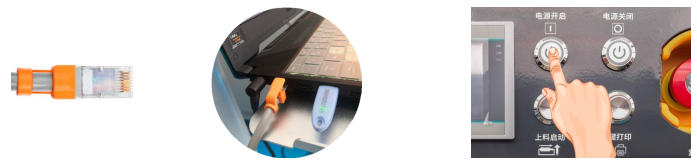
Step 1. Insert the network cable of the device motherboard into the computer network port, and power on
Insert one end of the Cat 7 high-speed network cable configured by the printer (the other end is already plugged in) into the computer’s Gigabit network card port. After turning on the power, press the printer’s operation panel
Press the “Power On” button of the board’s power; the button LED will always be on (press the “Power Off” button to turn off the power), as shown in the figure:
Step 2. Set IP address
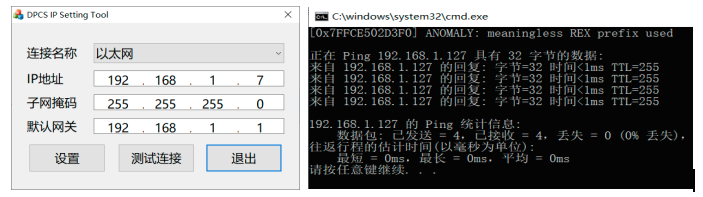
Open the “IP Address Setting” folder (including config and IP setting files) that you stored in the computer, double-click to run the application (exit the anti-virus software first), pop up the “DPCS IP Setting Tool” tool, select the connection name (if there is one) Another Ethernet name, such as Ethernet 2, select another Ethernet), when setting the IP address, except that the fourth digit of the IP address can be any number between 1 and 254 (except 127), other numbers press Do not change the settings in the picture, then click the “Settings” button, and then click “Test Connection” to automatically obtain the IP address, data packets
The sent and received quantities must match. As shown below :